


When your Ring Video Doorbell Wired goes offline, won’t connect to Wi-Fi, or starts acting “stuck,” it’s genuinely frustrating—especially because it’s a security device you rely on every day. The good news: in most cases, a proper reset (done the right way) will get it back to normal.
This guide walks you through exactly how to power cycle, factory reset, and set up your Ring Video Doorbell Wired again—plus what to do if the reset doesn’t solve the issue. It focuses on the Ring Video Doorbell Wired model (hardwired). It doesn’t cover advanced electrical rewiring beyond basic safety checks—if you’re unsure around wiring, it’s safer to use a qualified electrician.
Diagnostic & Preparation: Common Causes + What You Need Before Resetting
Common reasons your Ring Video Doorbell Wired needs a reset
These are the most frequent causes we see when Ring doorbells stop cooperating:
- Wi-Fi changes (new router, new password, new network name).
- Weak Wi-Fi signal at the front door (connection drops, delayed alerts).
- Power issues (transformer not in spec, loose wires, breaker interruptions).
- Setup glitches (app can’t find the Ring setup network, QR scan issues).
- Ownership/account issues (device still registered to an old account).
- Device is offline and unresponsive, requiring a reboot or factory reset.
Prerequisites & safety (don’t skip this)
Before you begin, make sure you have:
- Your Wi-Fi password ready.
- The Ring app installed and updated.
- The security screwdriver/bit that came with your device (many Ring faceplates use a star-shaped T15 Torx security screw).
- Safe access to your breaker/circuit (you may need to cut power briefly).
Important data note:
A factory reset mainly forces the device back into a “fresh setup” state, but removing a device from your Ring account is what can delete recorded data and release ownership. Ring notes that once a device is removed, its data and videos are deleted, so download anything you need first.
Step-by-Step Troubleshooting Guide (Reset + Re-Setup)
Step 1: Choose the right reset type (quick reboot vs. full factory reset)
- Start with a power cycle if the doorbell is frozen, offline, or lagging.
- Use a factory reset if:
- You changed Wi-Fi and reconnection keeps failing.
- The device won’t enter setup properly.
- You want to re-add it from scratch in the Ring app.
- If you’re transferring ownership, remember: factory reset alone doesn’t release ownership—you must remove it in the Ring app.
Step 2: Power cycle (reboot) your Ring Video Doorbell Wired
A power cycle is the fastest “soft reset” and often fixes temporary glitches.
- Turn off power to the doorbell at the circuit breaker (or the correct power source).
- Wait about 10–30 seconds.
- Turn power back on.
- Give the doorbell a minute to fully boot and reconnect.
Tip: If you’re unsure which breaker controls your doorbell, Ring recommends turning off the master breaker and verifying power is off by pressing the doorbell (the chime shouldn’t sound).
Step 3: Access the setup button (and remove the faceplate safely)
On wired Ring models, the setup button is under the faceplate, on the right side.
- If your faceplate has a security screw, remove it using the included tool/bit (often T15 Torx).
- Remove the faceplate:
- Grasp the bottom edge of the faceplate.
- Pull outward to pop it off.
- For this model, Ring specifically describes pulling the bottom while pushing in on the center of the doorbell.
- Locate the setup button on the right side under the faceplate.
Step 4: Factory reset your Ring Video Doorbell Wired (full reset)
A factory reset is the “clean slate” option.
- Make sure the doorbell has power (it must be powered to reset).
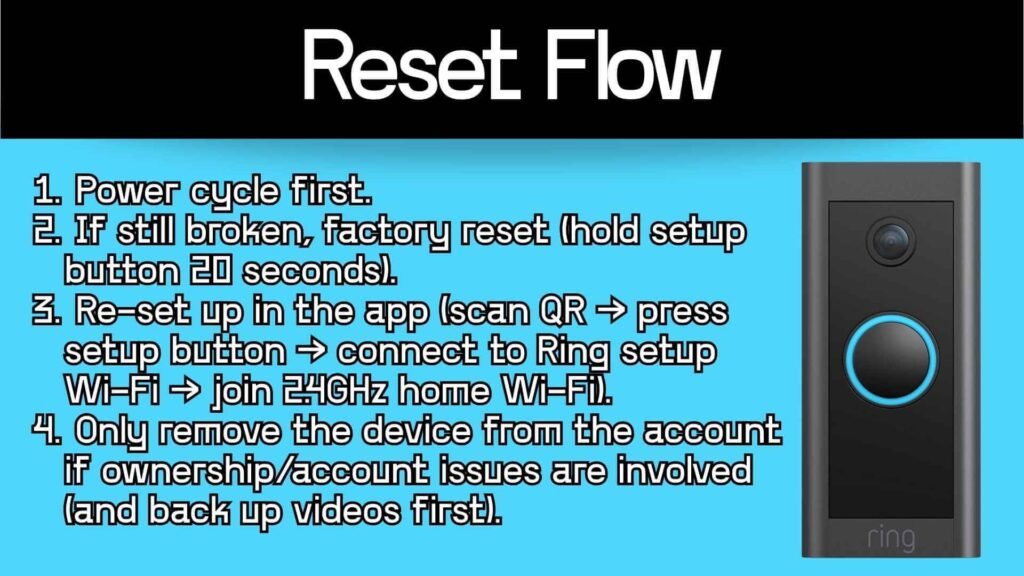
- Press and hold the setup button for 20 seconds.
- Release the button.
- Wait for the device to restart.
- Plan to set it up again in the Ring app afterward.
Step 5: Set it up again in the Ring app (reconnect to Wi-Fi)
After a factory reset, you’re essentially doing a fresh setup.
- Open the Ring app.
- Tap Set Up a Device.
- Choose Doorbells.
- Scan the QR code (it may be on the back of the device or under the faceplate).
- When the app prompts you, press the setup button to put the doorbell into setup mode.
- Confirm the light is spinning (Ring notes the light will begin to spin when setup mode starts).
- Join the temporary Ring- / Ring Setup Wi-Fi network if prompted (especially common on iPhone).
- Select your home Wi-Fi and enter the password to complete setup.
Critical warning: During setup, the device may update firmware. Ring warns not to remove power or press the setup button while it’s updating.
Step 6: If the app still won’t cooperate, use “Reconnect / Change Network” first
If your device shows offline, you may not need a full reset—try the built-in reconnection flow:
- Open the Ring app dashboard.
- Tap more (•••) on the device tile.
- Tap Settings.
- Tap Device Health.
- Under Network, tap Reconnect or Change Network, then follow prompts.
This is often the cleanest fix after router/password changes.
Step 7: Remove the device from your Ring account (only if needed)
Do this if you’re transferring ownership, the device is “stuck” registered, or you’re doing a full clean start.
Important: Ring states that canceling a plan, uninstalling the device, or deleting the Ring app does not release ownership—you must remove it inside the Ring app.
- Tap the menu (☰) in the Ring app.
- Tap Devices.
- Select your doorbell.
- Tap Device Settings.
- Tap General Settings.
- Tap Remove this Device (or Remove Device depending on your app screen).
Data caution: Ring notes that once removed, data and videos are deleted. If you want to keep recordings (with a subscription), Ring also describes a “Deactivate” option that can preserve access to Event History while still enabling transfer.
Advanced fixes if resetting didn’t solve the problem
If you completed the reset and setup still fails, the issue is usually Wi-Fi or power.
Wi-Fi checks (most common)
- Confirm your model is on the right band: Ring lists 802.11 b/g/n 2.4GHz Wi-Fi for Video Doorbell Wired. If your router is set to 5GHz-only, enable a 2.4GHz network.
- Check internet speed: Ring recommends at least 2 Mbps download and 2 Mbps upload for optimal performance.
- If setup fails:
- Verify the password by “forgetting” and reconnecting on your phone first.
- Remove special characters from your Wi-Fi name if the device struggles to connect.
- Move the router closer, or use a compatible extender/mesh option if distance is the issue.
Power checks (wired devices)
- Confirm the transformer/power source meets requirements. Ring lists a hardwired transformer range such as 10–24 VAC (40VA max) for continuous power.
- Ring also warns that incompatible power sources can damage the device and cause electric shock—and in some regions they recommend professional installation for hardwiring.