


When your Ring Battery Doorbell Plus stops detecting motion, the frustration is real. You bought it to catch visitors, deliveries, and suspicious activity, not to miss the one event that matters. The good news is that this issue is usually fixable. In most cases, the cause is a settings problem, weak Wi-Fi, low battery performance, poor mounting position, or a notification misconfiguration rather than a failed device. Ring’s own support material for the Battery Doorbell Plus points to Advanced Motion Detection, customizable Motion Zones, battery health, and network strength as the main areas to check.
This guide is written for typical Ring users—homeowners, renters, apartment residents, and DIY troubleshooters—who want a practical fix without guessing. It covers the full motion-detection path: app settings, motion zones, battery and temperature issues, Wi-Fi health, mounting height, rebooting, firmware behavior, and factory reset steps. It does not focus on unrelated problems like distorted audio, chime-only issues, or Alexa routines unless those problems directly affect motion alerts.
Common Causes of Ring Battery Doorbell Plus Missing Motion
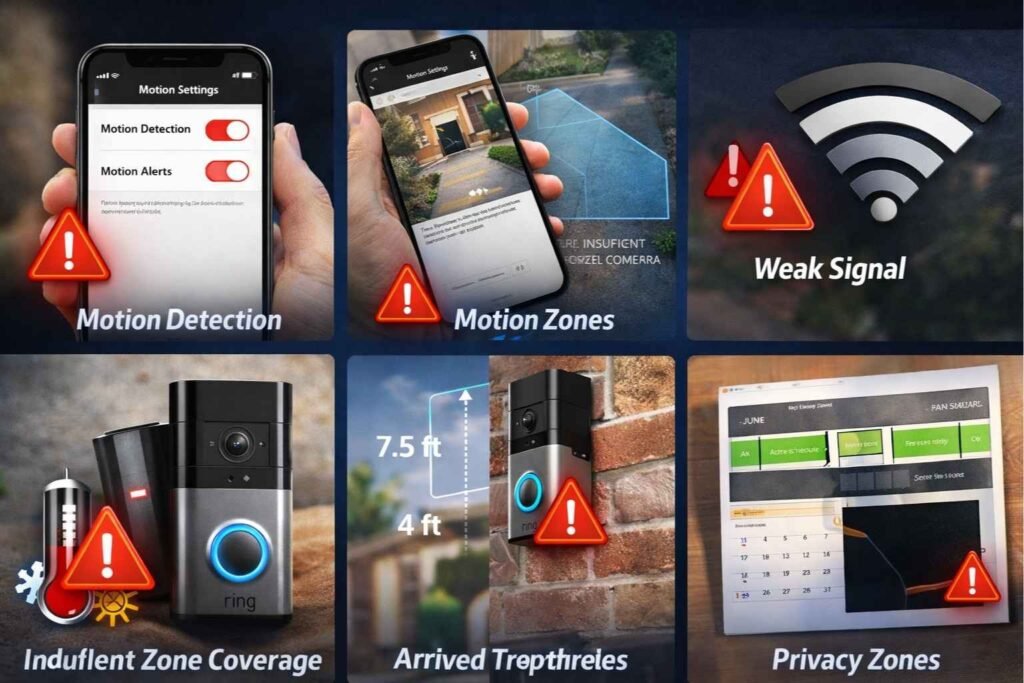
The most common reasons your Ring Battery Doorbell Plus is not detecting motion are:
- Motion Detection or Motion Alerts are turned off in the Ring app. Ring separates detection, recording, and alert controls, so a disabled toggle can make the device seem broken.
- Motion Zones are set incorrectly or Advanced Motion Detection is off, which matters on battery-powered Ring devices. Reflective surfaces can also interfere with motion behavior.
- Motion Sensitivity is too low or Motion Frequency is set in a battery-saving mode that checks for motion less often.
- Modes, Motion Schedules, or Privacy Zones are blocking alerts or coverage.
- Weak Wi-Fi or offline status is interrupting motion performance. Ring measures signal with RSSI, and poorer values can lead to delays, interruptions, or devices going offline.
- Low battery or temperature stress is reducing reliability. Ring notes that charging and battery life can be affected in freezing or very hot conditions.
- Incorrect placement or angle is limiting what the sensors see. Ring recommends mounting doorbells at about 48 inches from the ground for best motion detection.
What to Prepare Before You Start
Before troubleshooting, have your phone with the latest Ring app, your Wi-Fi password, the included security screwdriver, and the charging cable nearby. If you may remove the battery, keep a working USB power source available. For any hardwiring or mount adjustment, cut power first and follow local electrical rules. Also, do not remove power or press the setup button while the device is updating firmware.
Step-by-Step Troubleshooting Guide
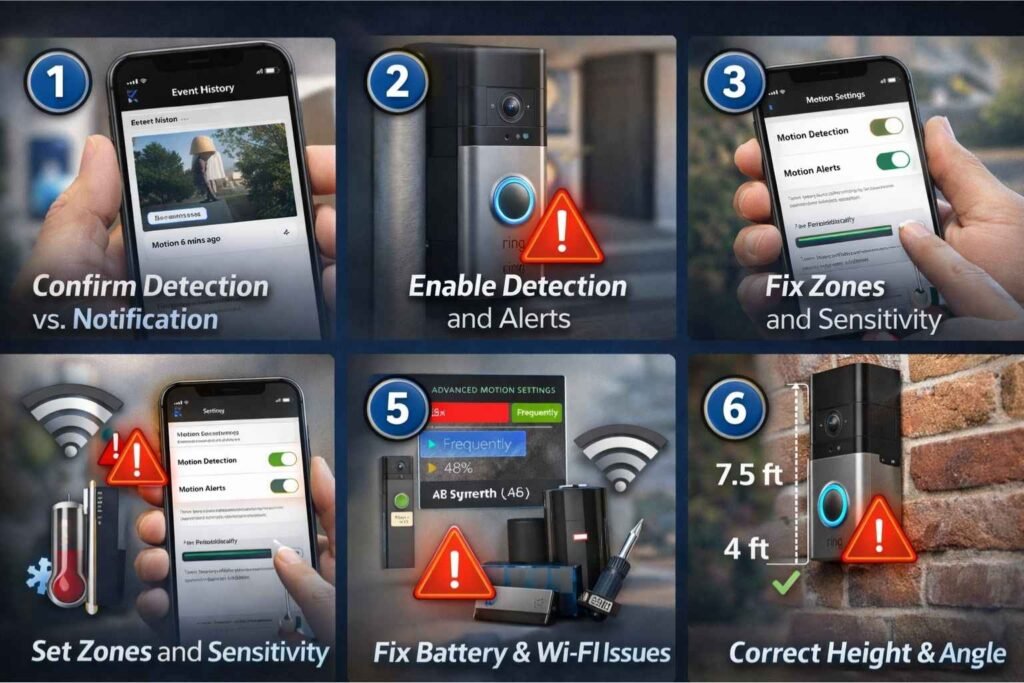
Step 1: Confirm Whether the Problem Is Motion Detection or Only Notifications
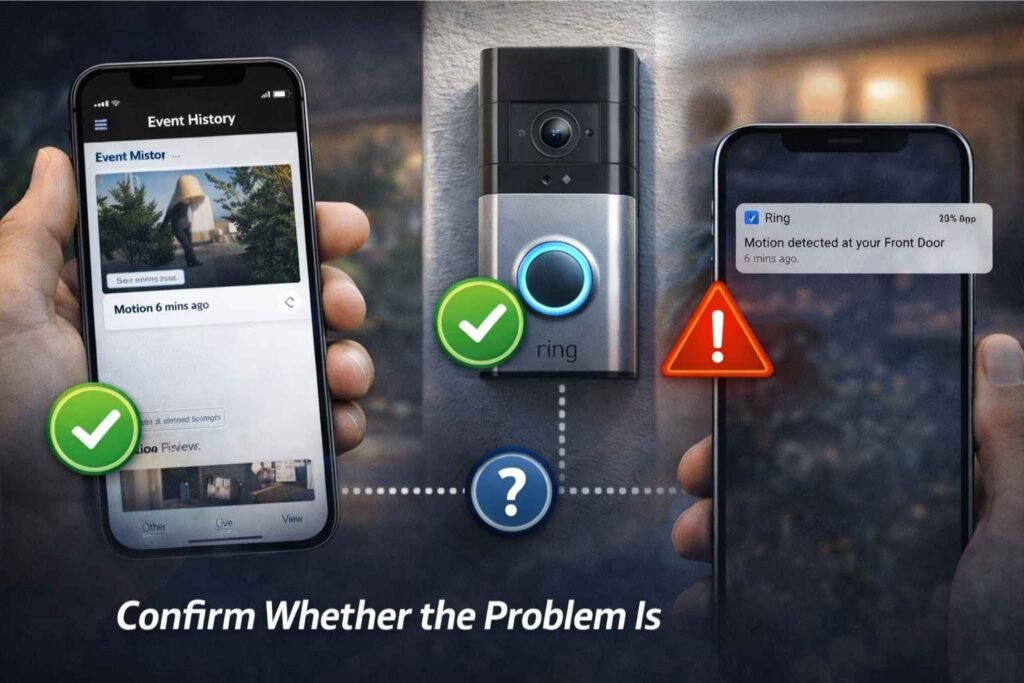
- Walk through the area where motion should be detected and trigger a test event.
- Open the Ring app and check Event History.
- If you see a recording but did not get a phone alert, your motion detection worked and the problem is with notifications, not sensing.
- If there is no event at all, continue with the steps below. Ring specifically recommends checking Event History first to separate missed alerts from missed motion events.
Step 2: Make Sure Motion Detection and Motion Alerts Are Turned On
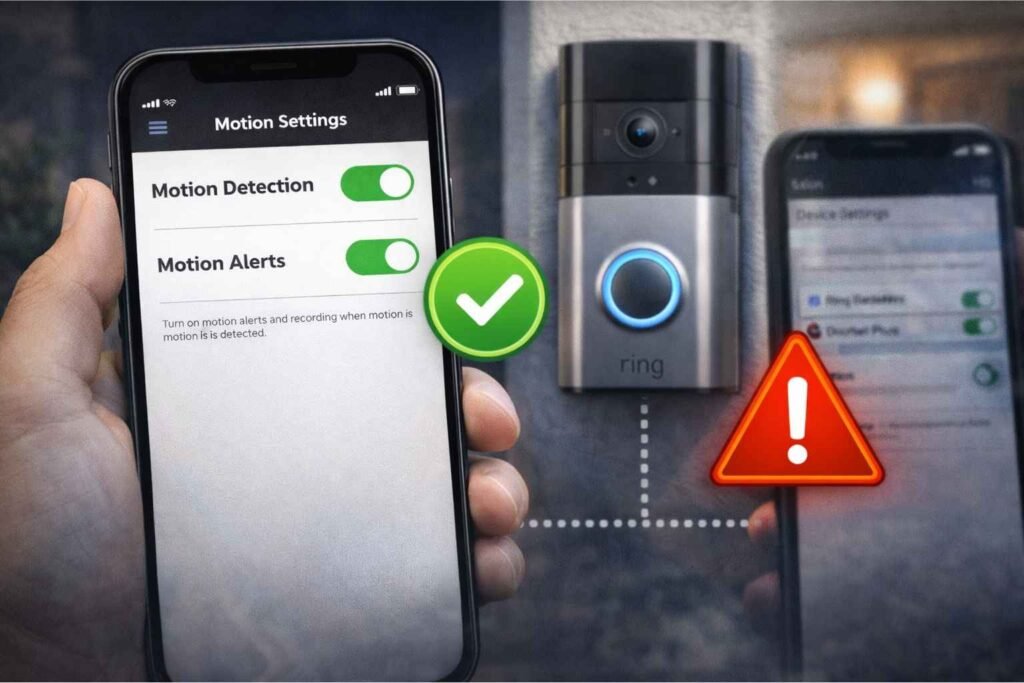
- Open the Ring app.
- Tap more (•••) on your Battery Doorbell Plus.
- Tap Settings.
- Turn on Motion Detection.
- Turn on Motion Alerts.
- Confirm the device shows as online in the dashboard or in Device Health.
Ring’s support guidance is clear here: Motion Detection must be on for the device to detect and record events, and Motion Alerts must be on if you want phone notifications. Ring also notes that recording requires a subscription, so it is possible to troubleshoot alerts and detection even when recordings are limited by plan status.
Step 3: Fix Motion Zones and Enable Advanced Motion Detection
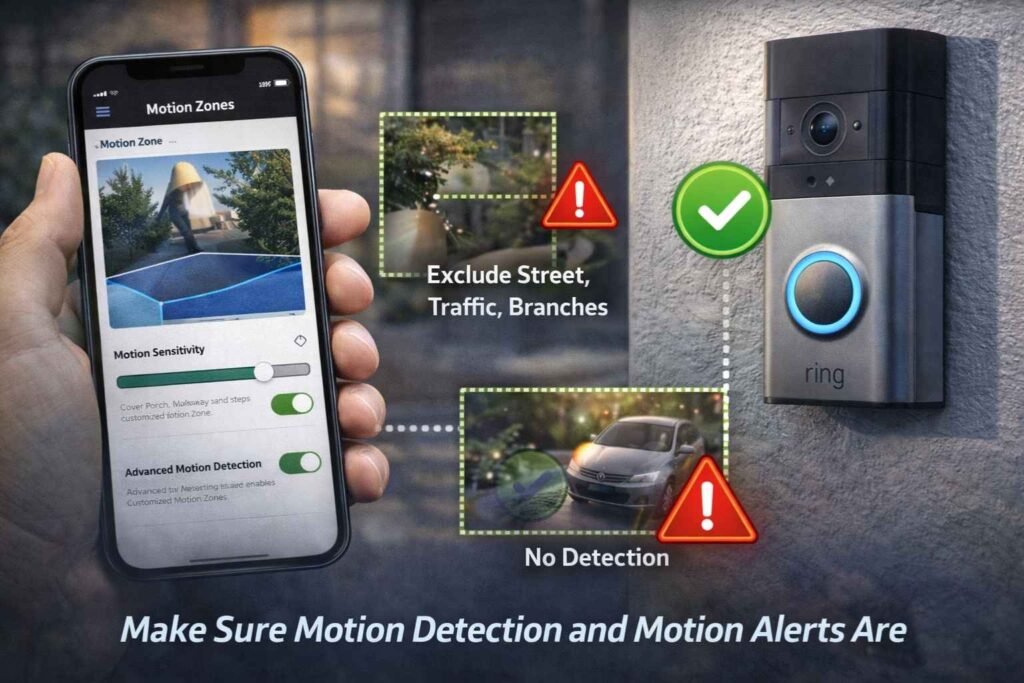
- Go to Settings > Motion Settings.
- Open Camera Motion Zones.
- Make sure your porch, walkway, steps, or package area are inside the active zone.
- Exclude the street, sidewalk, tree branches, and other high-traffic areas that do not matter.
- Turn on Advanced Motion Detection.
- Save your changes and test again.
This step matters because the Battery Doorbell Plus uses Advanced Motion Detection with Customizable Motion Zones, and Ring notes that battery-powered devices may need Advanced Motion Detection enabled for Motion Zones to work properly. Ring also warns that reflections from windows or mirrors can affect motion detection. You can create up to three motion zones, and Ring states that the standard maximum detection range is about 9 metres, though larger objects farther away can still trigger alerts.
Step 4: Increase Motion Sensitivity and Motion Frequency
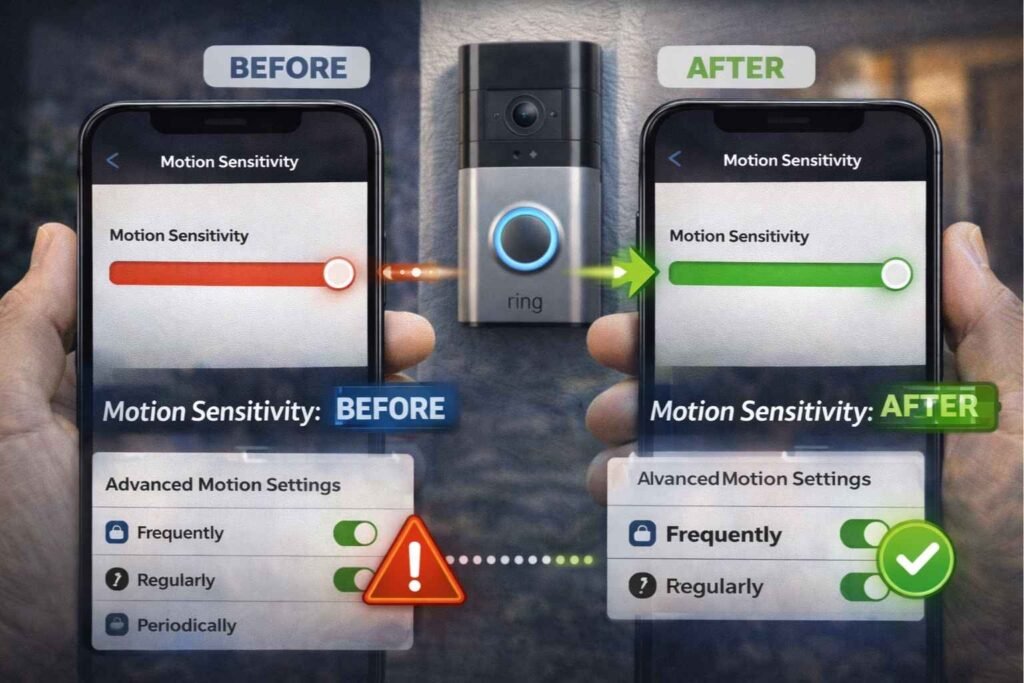
- Stay inside Motion Settings.
- Raise the Motion Sensitivity slider.
- Open Advanced Settings.
- Tap Motion Frequency.
- Set it to Frequently while testing.
- Use the doorbell normally for a day, then fine-tune later if battery drain becomes too high.
Ring explains that lowering Motion Sensitivity reduces detection range, so if your doorbell is missing people, increasing sensitivity is the correct move. For battery devices, Ring also says that Frequently keeps motion detection active more often, while Regularly and Periodically insert longer breaks after motion events to save battery. That battery-saving behavior can cause missed motion if the setting is too conservative for a busy entrance.
Step 5: Check Modes, Motion Schedules, and Privacy Zones
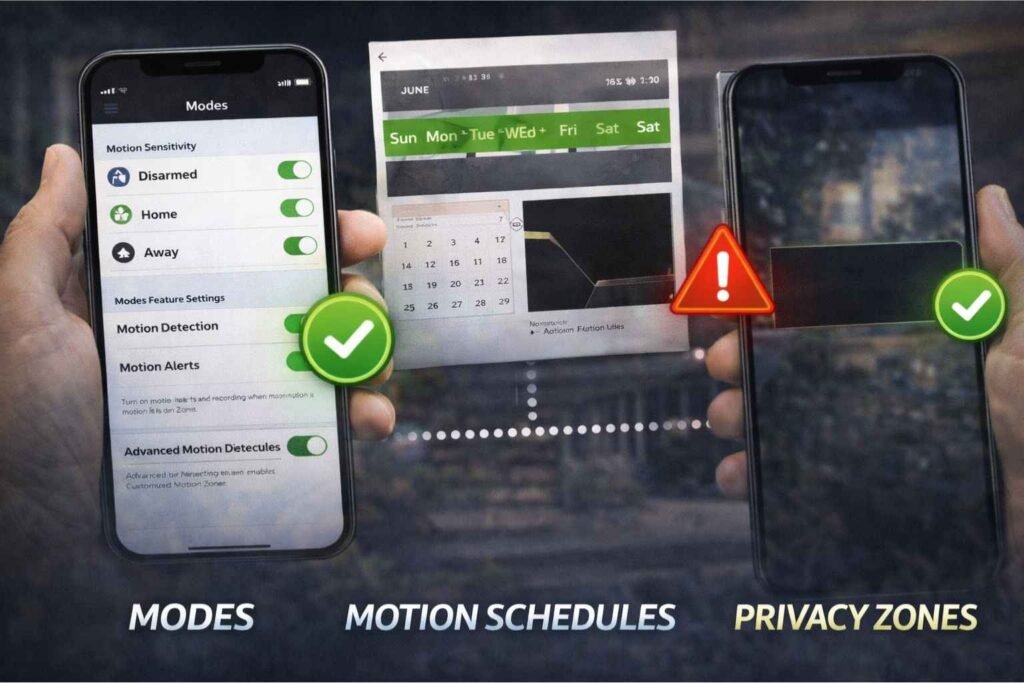
- Disable Modes temporarily, then retest.
- Open Motion Settings > Motion Schedules.
- Turn off or delete any schedule you do not need.
- Check whether a Privacy Zone is covering the area you want monitored.
- Test motion again after each change.
This is one of the easiest problems to miss. Ring states that if Modes or Motion Schedules are active, there may be times when alerts are suppressed. Ring also notes that when a Motion Schedule is active, motion may still be recorded, but notifications will not be sent. Privacy Zones can also block areas from detection and recording.
Step 6: Check Battery Level, Charging Status, and Temperature Conditions
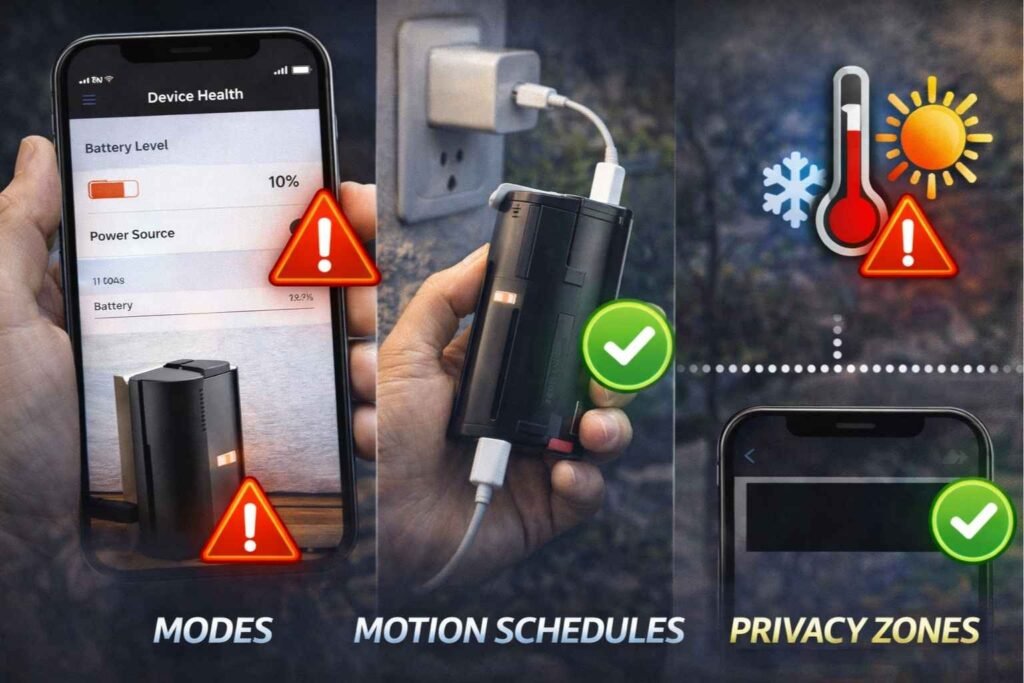
- Open Settings > Device Health.
- Check Battery Level and Power Source.
- If the battery is low, remove it and charge it fully.
- Reinsert the battery and wait for the device to start up.
- If the weather is freezing or extremely hot, test again after the device returns to a moderate temperature.
Ring says the Battery Doorbell Plus uses a Quick Release Rechargeable Battery Pack, and its support guide says a full charge can take up to 10 hours with a USB power source that provides at least 1 amp. After reinserting the battery, startup can take up to 60 seconds. Ring also says battery-powered devices perform best around 75°F (25°C), operate normally between -4°F and 122°F (-20°C to 50°C), may stop charging below freezing, and can enter cooldown or shut down temporarily in excessive heat.
Step 7: Fix Weak Wi-Fi or Offline Status
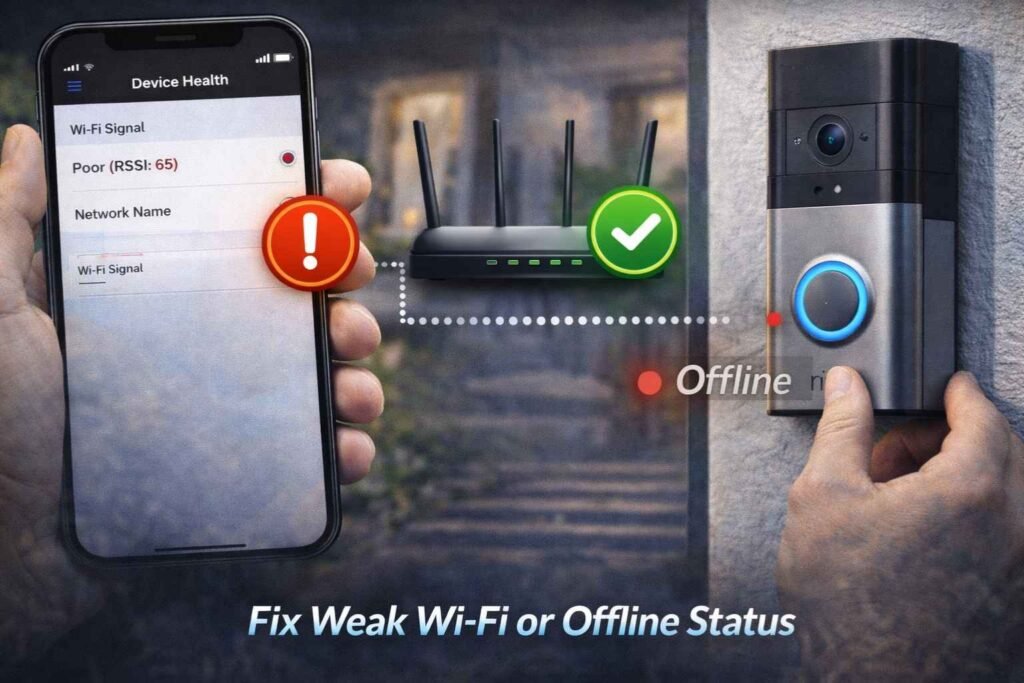
- Open Settings > Device Health.
- Check Status and Signal Strength.
- If the device is offline, tap Reconnect or Change Network.
- Move the doorbell closer to the router, or move the router closer to the doorbell if possible.
- Consider a Chime Pro or mesh network if the signal is weak.
- If reconnection fails, try another 2.4 GHz Wi-Fi network.
This step is critical for the Battery Doorbell Plus because Ring lists it as a 2.4 GHz-only Wi-Fi device. Ring rates RSSI 0 to -60 as great, -60 to -70 as okay, -70 to -80 as poor, and -80 or worse as very poor, with possible interruptions or offline behavior. Ring also says devices need at least 1 Mbps upload speed to work, while 1536p devices need about 2.5 Mbps upload per device for optimal performance. Since the Battery Doorbell Plus records in 1536p HD+, weak upload speed can absolutely contribute to missed or delayed motion behavior.
Step 8: Correct the Mounting Height and Viewing Angle
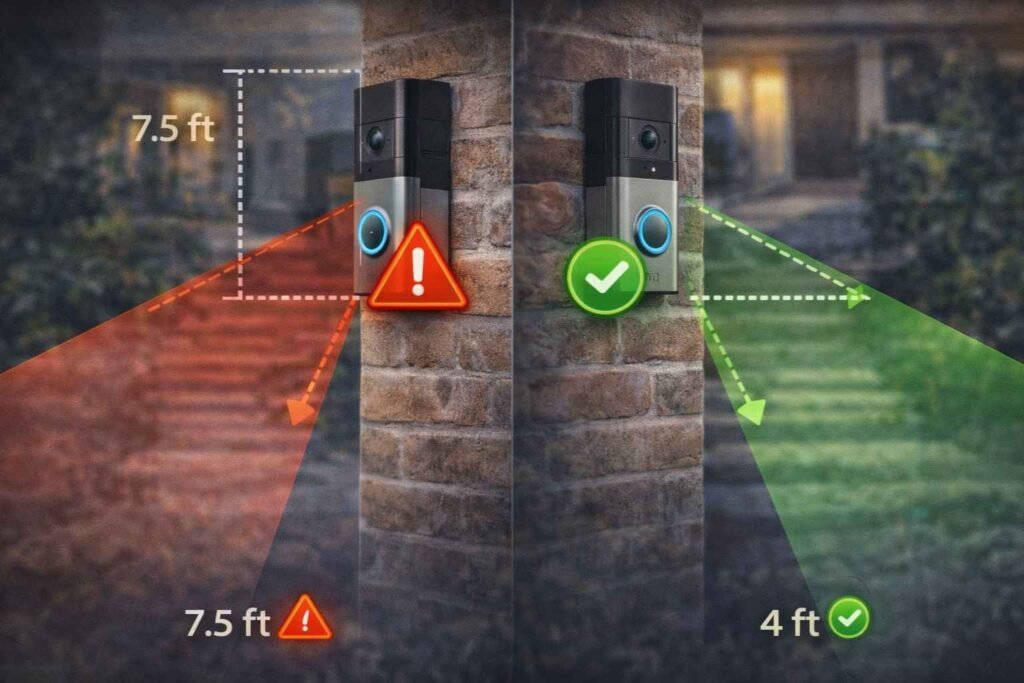
- Measure the current mounting height.
- Adjust the doorbell so it sits about 48 inches (1.22 m) from the ground.
- Use Live View to confirm that the approach path is visible and unobstructed.
- If your entrance is on stairs or angled siding, install a Wedge Kit.
- If your doorbell is mounted near a corner wall, use a Corner Kit.
- Retest motion after repositioning.
Ring’s positioning guidance says doorbells should be mounted at 48 inches for optimal motion detection. It also says incorrect height can cause inconsistent motion detection or unwanted motion events. Ring further explains that a Wedge Kit can improve vertical angle and a Corner Kit can improve horizontal angle and night visibility. For most models, Wedge Kits can stack to adjust up to 15 degrees, while Corner Kits can stack to adjust up to 45 degrees.
Step 9: Reboot the Doorbell
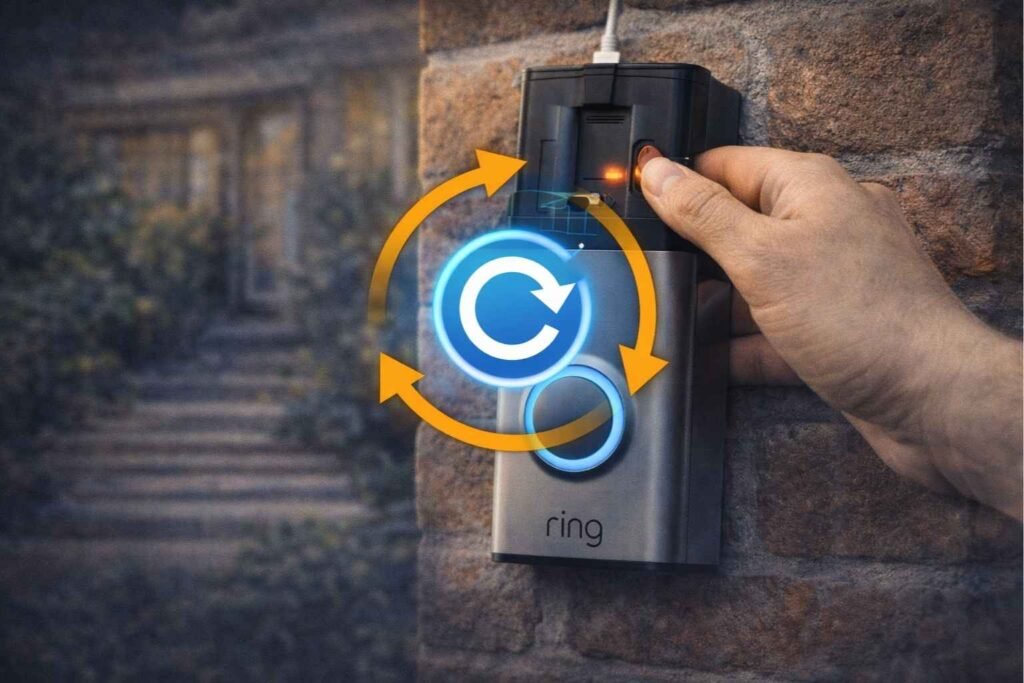
- If the doorbell is online, open Ring app > Devices > Battery Doorbell Plus > Device Health.
- Tap Reboot This Device.
- If the doorbell is offline, remove the Quick Release Battery Pack.
- Wait a few seconds.
- Reinsert the battery and let the device restart.
Ring recommends rebooting as a general recovery step. In the app, rebooting is done through Device Health. If the doorbell is not connected to Wi-Fi, Ring says you can temporarily remove the battery pack to power-cycle the device. Its general reset guide also says battery-operated devices can be power-cycled by removing the battery pack for 10 seconds and then reinserting it.
Step 10: Update the Ring App and Let Firmware Finish Updating
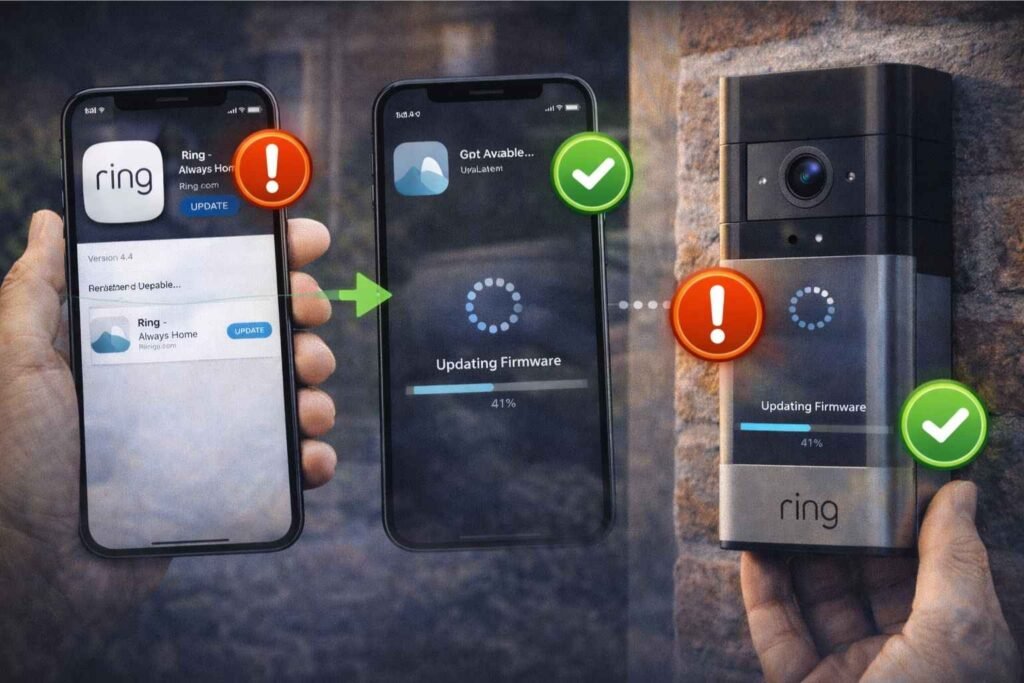
- Update the Ring app on your phone or tablet.
- Make sure your phone’s operating system is also current.
- If the doorbell is flashing as part of a firmware update, leave it alone.
- Wait until the update completes, then test motion again.
Ring says you need the latest version of the Ring app to access current features, and the current app requires iOS 17 or later or Android 9 or later. Ring also states that device firmware updates are automatic, and battery-powered devices cannot be used while firmware is updating. During that time, you should not remove power or press the setup button.
Step 11: Factory Reset and Set the Doorbell Up Again
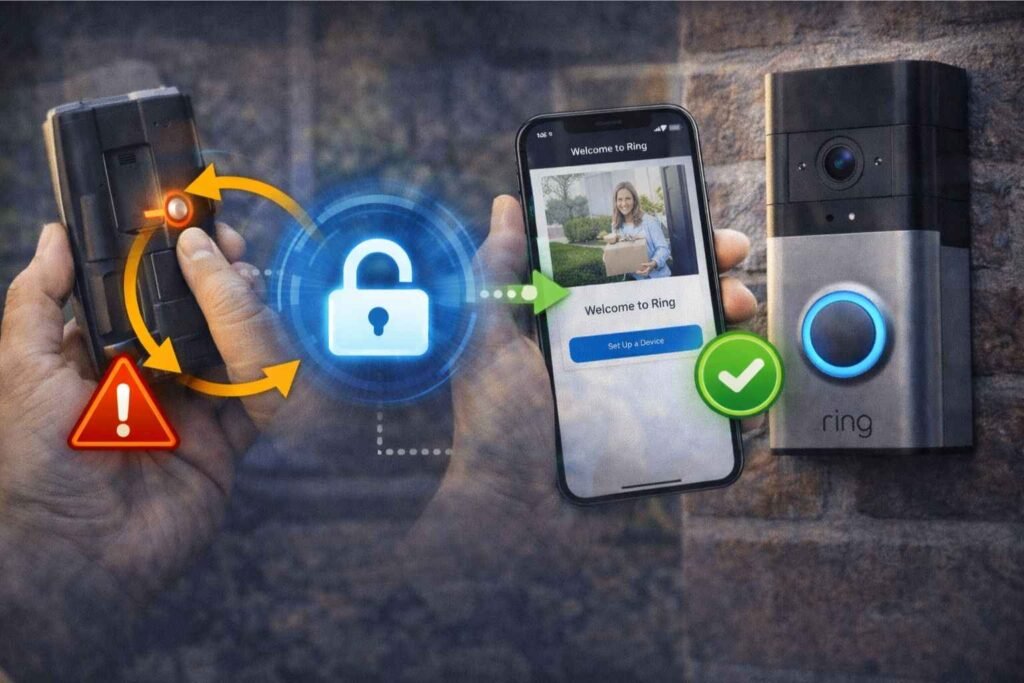
- Remove the faceplate if needed.
- Find the setup button.
- Hold the setup button for 20 seconds.
- Release it.
- Add the doorbell back in the Ring app.
- Rebuild Motion Zones, Motion Sensitivity, and Motion Frequency from scratch.
Ring recommends factory reset only after other steps fail. Its support page says that for doorbells, a factory reset is done by holding the setup button for 20 seconds. For models with a removable battery, Ring says the setup button is under the faceplate on the front of the device. After reset, you may need to complete setup again in the Ring app.
Advanced Fixes for Persistent Motion Problems
If the problem still continues, move to these more technical fixes:
- Separate a sensing problem from an alert problem. If Event History shows motion but your phone stays silent, check app notification permissions, disable Focus/Do Not Disturb, reboot the phone, reinstall the Ring app, and turn off any VPN that may delay notifications. Ring specifically lists all of these as notification troubleshooting steps.
- Use a stable 2.4 GHz network only. The Battery Doorbell Plus is specified for 2.4 GHz Wi-Fi, and Ring also suggests trying another 2.4 GHz network when reconnecting offline devices.
- Add continuous or supplemental power. Ring says battery-powered doorbells can be hardwired to an existing compatible transformer for a trickle charge, or connected to compatible solar accessories. This is helpful when frequent motion settings are draining the battery faster than expected.
- Use Smart Alerts carefully. Ring says Smart Alerts can filter for people, vehicles, packages, and other motion, but they require a compatible subscription. During diagnosis, broader motion settings can be more useful because they reduce the chance that a strict filter is hiding the very event you are trying to test. That second point is a practical troubleshooting inference based on how Smart Alerts work.
- Correct environmental interference. Reflections, mirrors, bright light, swaying trees, street traffic, and extreme heat or cold can all interfere with reliable motion behavior. Ring’s support articles mention each of these as real-world factors that affect detection, video quality, or battery performance.
When to Contact Ring Support
If your Ring Battery Doorbell Plus still misses motion after you have confirmed the toggles, rebuilt zones, increased sensitivity, set Motion Frequency to Frequently, verified strong Wi-Fi, fully charged the battery, corrected placement, rebooted, and factory reset the device, the issue may be hardware-related or account-specific. At that stage, contact Ring Support with your Device Health details, battery level, RSSI value, and the exact time of missed events from Event History. Those details match the same diagnostic categories Ring surfaces inside Device Health and in its troubleshooting workflow.