


Smart doorbells such as the Ring Doorbell are great for home security — alerting you when someone approaches and giving you live video of activity at your entrance. But there are many situations when you might want to pause or temporarily disable your Ring Doorbell. Maybe you’re hosting company and don’t want constant motion alerts, doing maintenance or lawn work, or simply want privacy for a few hours. Knowing how to temporarily disable Ring ensures you get control over when the device is active — without permanently removing or deleting it. This knowledge is important for homeowners who value both security and flexibility.
In simple terms: Yes — you can temporarily disable your Ring Doorbell’s alerts or motion detection using the Ring app’s built-in settings such as “Snooze,” or by adjusting motion and alert toggles.
How to Temporarily Disable Ring Doorbell — Quick Answer
If you just want the fastest method: open the Ring app → go to your device → access Settings → toggle off “Motion Alerts” or use “Alerts Snooze” / “Motion Snooze.” This will mute alerts for a period or until you re-enable them.
With that done — here’s a full guide, plus related methods, caveats, and FAQs.
Methods to Temporarily Disable Ring Doorbell
App‑based Control: Alerts Snooze & Motion Alerts
What is Alerts Snooze and Motion Alerts?
- Alerts Snooze: A feature that lets you mute notifications from your Ring devices (doorbells or cameras) for a period of time.
- Motion Alerts: Settings inside device options to disable alerts triggered by motion detection. You can turn these off to stop motion‑based notifications.
How to use it (step-by-step)
- Open the Ring app on your smartphone.
- Go to Devices, and select the doorbell you want to silence.
- Tap ••• (More) or Settings for that device.
- To silence motion alerts: toggle off Motion Alerts (and/or Motion Detection, depending on what you want).
- To Snooze alerts for a limited time: tap the bell / crescent‑moon icon (Alerts Snooze), choose a duration, then confirm.
- To re-enable: go back and either toggle alerts back on or disable snooze manually.
What remains active
- If you only disable Motion Alerts, the device may continue to record video (if you have a subscription), but you won’t get phone/chime notifications.
- If you use Snooze, once the time ends — alerts return automatically, so you don’t forget to re-enable them.
Other Ways to Temporarily Disable or Reduce Ring Recording / Alerts
While the app’s built-in options are the easiest, there are additional methods — especially useful when you want to be extra sure notifications or recordings stop temporarily.
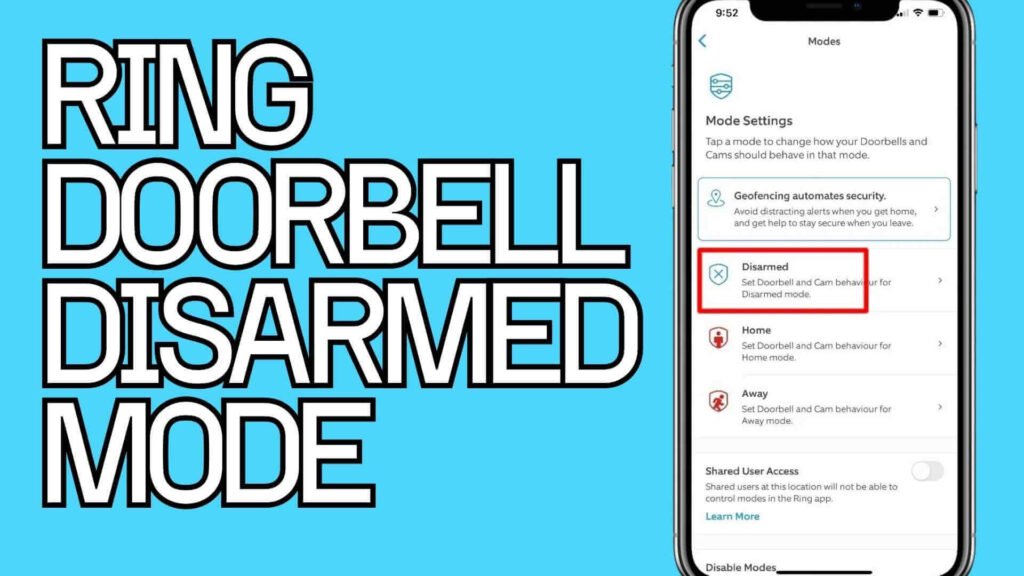
Using “Modes” or “Disarmed” / “Home” Modes
- Some users report that enabling a custom mode such as “Disarmed” or “Home” can suppress motion detection and recording when family is home or when you don’t want alerts.
- Under this mode, you can adjust what features remain active (e.g. live view, motion detection, notifications, etc.) depending on your needs.
This is useful if you repeatedly need to disable the doorbell (e.g. during gatherings, when you’re home all day, or for scheduled quiet hours), because you don’t have to manually change multiple settings each time.
Manual / Physical Methods
| Method | What it does / When to use | Pros | Cons / Cautions |
|---|---|---|---|
| Cut power / unplug (for wired models) | Physically disables the doorbell and camera | Completely shuts off alerts and recording — full privacy | You lose all functionality; device won’t alert or record at all until power restored |
| Disconnect Internet / Wi‑Fi | Disables detection/recording and remote connectivity | No risk of remote alerts or cloud recording | Device may still function locally; you lose remote access, live view / history |
| Cover the lens / block sensor | Prevents camera from capturing or detecting motion | Quick, temporary, no app needed | Easy to forget to remove; may risk violating device guidelines or warranty if done badly |
⚠️ Note: Many users report that even with “motion alerts” off, the camera may still record motion events — unless you disable motion detection (or power/Internet).
What You Can’t (Easily) Do: Limitations & Common Frustrations
- There is no single “master switch” to disable all notifications and recordings for a period — you often need to adjust multiple settings (alerts, motion detection, maybe live view). Some users find this cumbersome.
- Disabling only alerts does not guarantee the doorbell stops recording — so privacy is not fully ensured.
- If you have shared users (family members, housemates), toggling alerts may affect only your device — not others — unless you disable at the device level.
- Some community users report there is no simple “snooze all cameras & doorbells” feature — especially if you have many devices.
When & Why People Disable Ring Doorbell Temporarily
- During home events or gatherings — to avoid constant alerts while guests move around.
- When doing yard work, maintenance, or moving items — to prevent false motion notifications.
- To conserve battery (on battery-powered Ring devices) — reducing frequent motion detection calls can save power.
- For personal privacy or quiet times — maybe at night, during rest periods, or when you simply don’t want the doorbell alerting you.
- When shared users don’t want disruptions — e.g. a house sitter, babysitter, or guests staying temporarily.
Understanding these common use cases helps you pick the right method and settings for “temporary disable.”
Step-by-Step: Best Practice Workflow
Here’s a recommended workflow if you often want to temporarily disable your Ring Doorbell:
- Open the Ring app → go to the device.
- Use Alerts Snooze when you want a quick, time‑limited break (e.g. 30 minutes to 4 hours).
- If you expect longer downtime (e.g. overnight, or during an event), consider toggling Motion Alerts (and Motion Detection) off.
- If you want full privacy — no app alerts, no recording, no live video — then also turn off power or Wi‑Fi (or cover lens) — but be sure to remember to restore once done.
- When done, re-enable the toggles or power to resume normal security functionality.
Frequently Asked Questions (FAQs)
Can I temporarily disable recording on a Ring Doorbell?
Yes. Via the Ring app, you can disable motion detection, motion alerts, or enable “Disarmed / Home” mode to prevent recording during that period.
Will Ring still record video if I disable motion alerts only?
In many cases — yes. Disabling alerts stops notifications, but motion detection may still be active and record events.
How long does “Motion Snooze” work for?
Typically you can choose a duration — from around 30 minutes up to several hours — after which alerts resume automatically.
Does disabling alerts affect all users associated with the Ring doorbell?
Not always. Turning off alerts on your phone/device only affects your notifications. To silence alerts for all users, disable motion detection or alerts at the doorbell/device level.
Can I create a schedule for when Ring is active or inactive?
Yes — using motion schedules or mode settings (e.g. “Disarmed” or “Home”), you can define when the device detects motion or sends alerts.
What if I want complete privacy — no recording, no notifications, no live view?
For complete shutdown, you’ll need to disable motion detection and either cut power / unplug the device or disconnect Wi‑Fi/internet.
Is there a way to disable Ring doorbell for all devices (doorbell + cameras) at once?
Not via a single “master off” button — you’ll need to snooze or disable alerts for each device individually, or disable at power/internet level. Many users find this inconvenient.
If I am a “shared user” and not the account owner, can I disable the doorbell?
It depends on permissions. Shared users may be able to change alert settings on their device, but only account owners (or those with full permissions) can disable the device or power it off.
Will disabling Ring affect cloud storage and event history?
If you remove or deactivate the device, you lose real-time detection — but previously recorded events remain (subject to your plan). If you only disable alerts or motion detection, stored history is unaffected.
Summary
Temporarily disabling your Ring Doorbell is entirely possible — and often easy — via the official Ring app using features like Alerts Snooze, Motion Alerts toggles, or custom device Modes. For quick breaks (e.g. a few hours), snooze or disable motion alerts. For longer or more privacy‑sensitive periods (e.g. overnight, during events), consider turning off motion detection — or for full shutdown, cut power or disconnect the device from Wi‑Fi.
However, it’s important to know that disabling alerts does not always stop recording. If you want true privacy (no motion detection, no recording, no notifications), you’ll need to disable all relevant settings or power connectivity. Also note that if other people have access to the same Ring account, their notifications may remain unless device‑level settings are changed.
Understanding these methods gives you control over when your Ring Doorbell is active — letting you balance security, convenience, and privacy according to your lifestyle.